Quick reference guide

Create a workflow and make it active

By the end you will have a workflow that is active, which is the state it has to be in before anyone can run it or put it on a schedule.
About 4 minutes

Before you start

The steps

A workflow moved from draft to active in the Hartwell demo workspace, which is example data. Activation is what makes it selectable when you launch an instance.
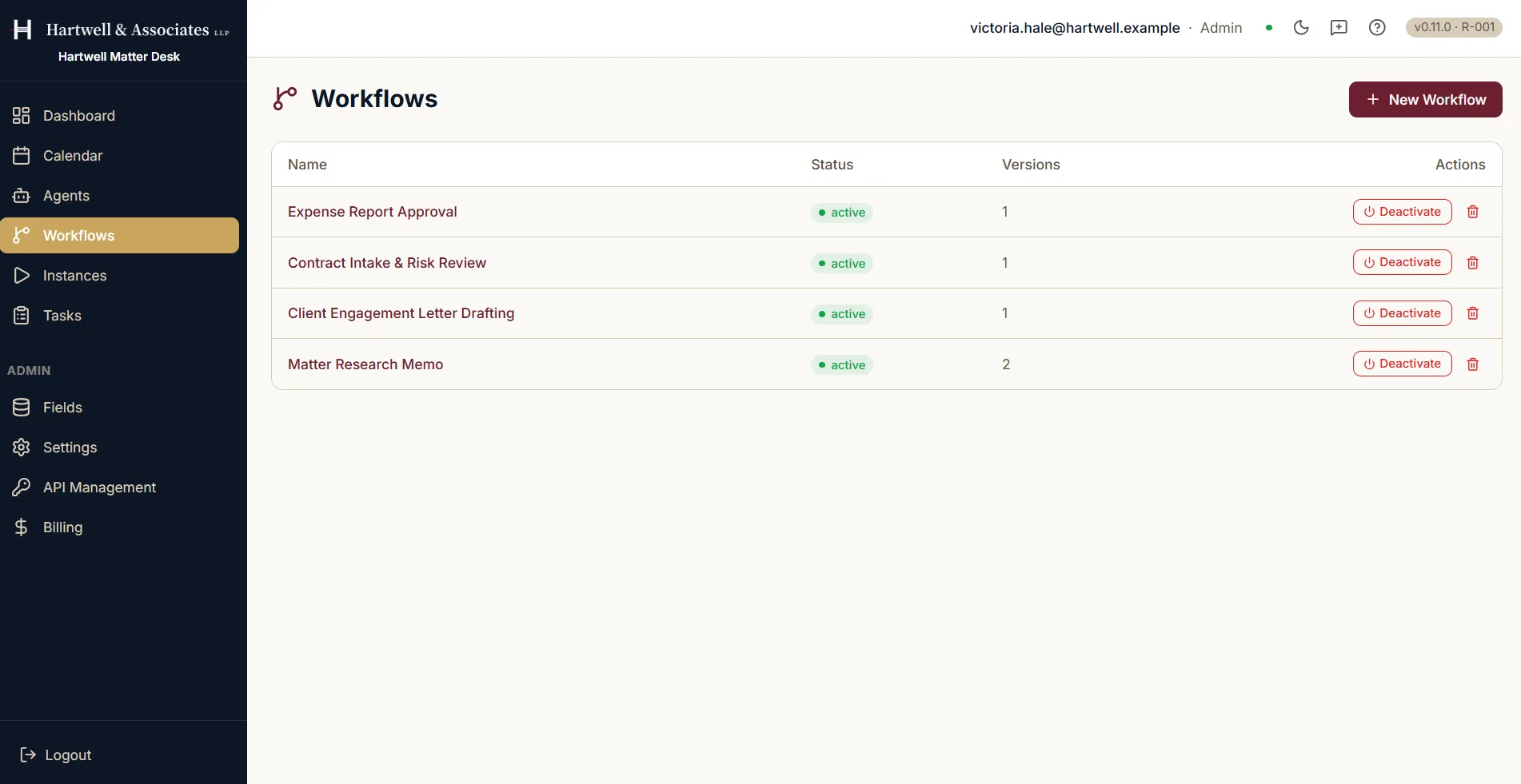
The Workflows screen in Dave listing four workflows: Expense Report Approval, Contract Intake and Risk Review, Client Engagement Letter Drafting, and Matter Research Memo. Each row shows a green active status badge, a saved version count of one or two, and a Deactivate button in the Actions column. A New Workflow button sits in the top right.

The workflow list, with each workflow's status, version count and activation control. Demo workspace with example data.

Where to go next

Adapted from the in-product help centre, which stays the fuller reference. For how to raise anything this guide does not cover, see the Support Hub.

Create and Activate a Workflow in Dave: A Quick Reference Guide | Dave